
SLAs with business hours: promise a response time and keep it
A support promise you can't see on the ticket is a promise you'll break on a Monday morning. Cayzu puts the SLA clock on every ticket, counts only your business hours, and skips the holidays.
What an SLA gives you
Every ticket shows how long until it breaches, so agents work the queue in the order that matters instead of the order it arrived. Managers get a number: what share of tickets met the target this week, and which group or company is slipping. Customers get a response time they can count on, because every ticket is measured against it.
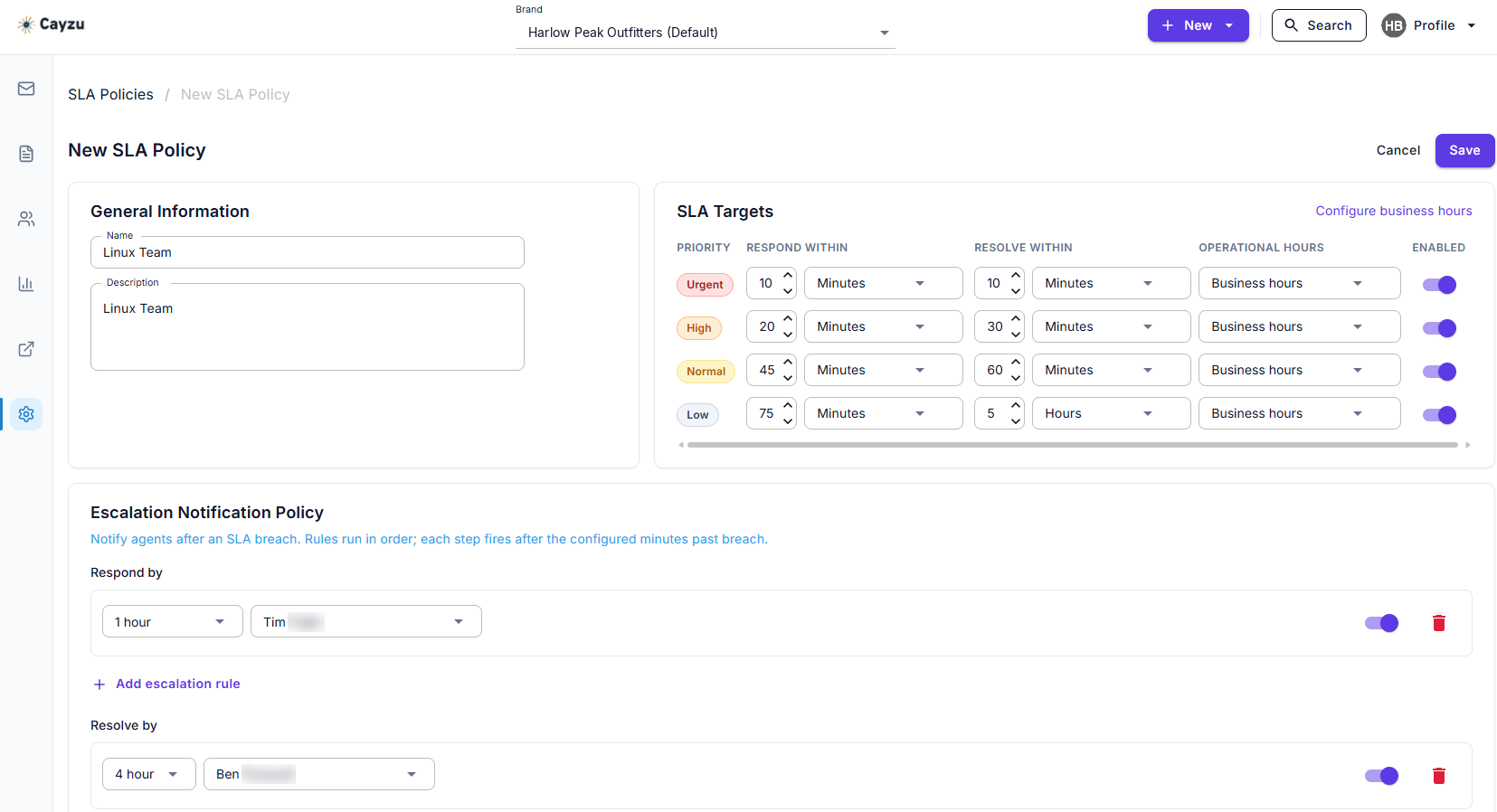
The targets are per priority. Urgent might be a one-hour response and four-hour resolution; low might be two business days. Two clocks run on each ticket, one for the first reply and one for the close.
You can have more than one policy. Each one has conditions, so it can be limited by team, brand, company or when the ticket was created, and a ticket gets the policy whose conditions it matches. That way one company or one brand can have its own targets. Brand conditions need multi-brand, which is on Enterprise.
Related features
- Assignment rulesLet a rule set the priority on arrival, and the matching SLA target starts counting right away.
- ReportsThe SLA report shows which tickets met their targets and which missed. On Pro and Enterprise.
- Round robinRound robin gives every new ticket an owner the moment it arrives, so first-response targets are easier to hit. On Enterprise.
SLA clocks that count only your business hours
An SLA clock that ignores the calendar makes a good team look late. A ticket arrives at 5:30 on a Friday, and by Monday the report says it was late by sixty hours. Cayzu lets you set the hours you're open and the time zone, and the timers count only those hours. Each priority can have its own schedule, so urgent tickets can run around the clock while the rest follow business hours.
Holidays work the same way. Add them in the Holidays step of your business hours schedule. It takes a date range, so a long weekend or a whole closure is one entry. The clock pauses, and nobody comes back to a page of red tickets that nobody could have answered. Our help desk SLA guide runs one Friday ticket through both clocks.
See it with your own tickets.
Every feature for 15 days. No credit card. No contract.
Setting up SLAs and business hours
- Set your business hours and time zone, and add this year's holidays.
- Pick targets for each priority. Start loose and tighten.
- Add an assignment rule that sets priority on arrival, so the right clock starts without an agent touching the ticket.
Which plan has SLAs, and their limits
SLAs and business hours are on Pro and Enterprise. Standard doesn't include them. Compare the plans.
SLAs have two limits. The SLA measures time, not quality: a fast wrong answer passes. And a target is only as good as the priority on the ticket, so an urgent request filed as normal gets the normal clock until someone corrects it.
Related: reports, round robin, and the ticket queue.
Questions people ask
A service level agreement is the response and resolution time you promise for each priority: answer urgent tickets within an hour and close them in four, answer normal ones in a day. The help desk times every ticket against that promise.
Only if you tell it to. You set business hours and the SLA timers count those hours alone, so a ticket that arrives Friday at 6pm isn't overdue Saturday morning. You can also give urgent tickets a 24-hour schedule and keep the rest on your business hours.
Add them in the Holidays step of your business hours schedule. It takes a date range, and the clock pauses on those days. A ticket submitted on December 25 doesn't start counting until you're open again.
It depends on what you've promised customers, not on a benchmark. A common starting point for a small team is one business hour for urgent, four for high, one business day for normal and two for low, then tighten what you consistently beat.
Pro and Enterprise. Standard doesn't include them.
Try it with your own tickets
Every feature for 15 days. No credit card. No contract.